


Creating and Using Consistent Characters
On this page
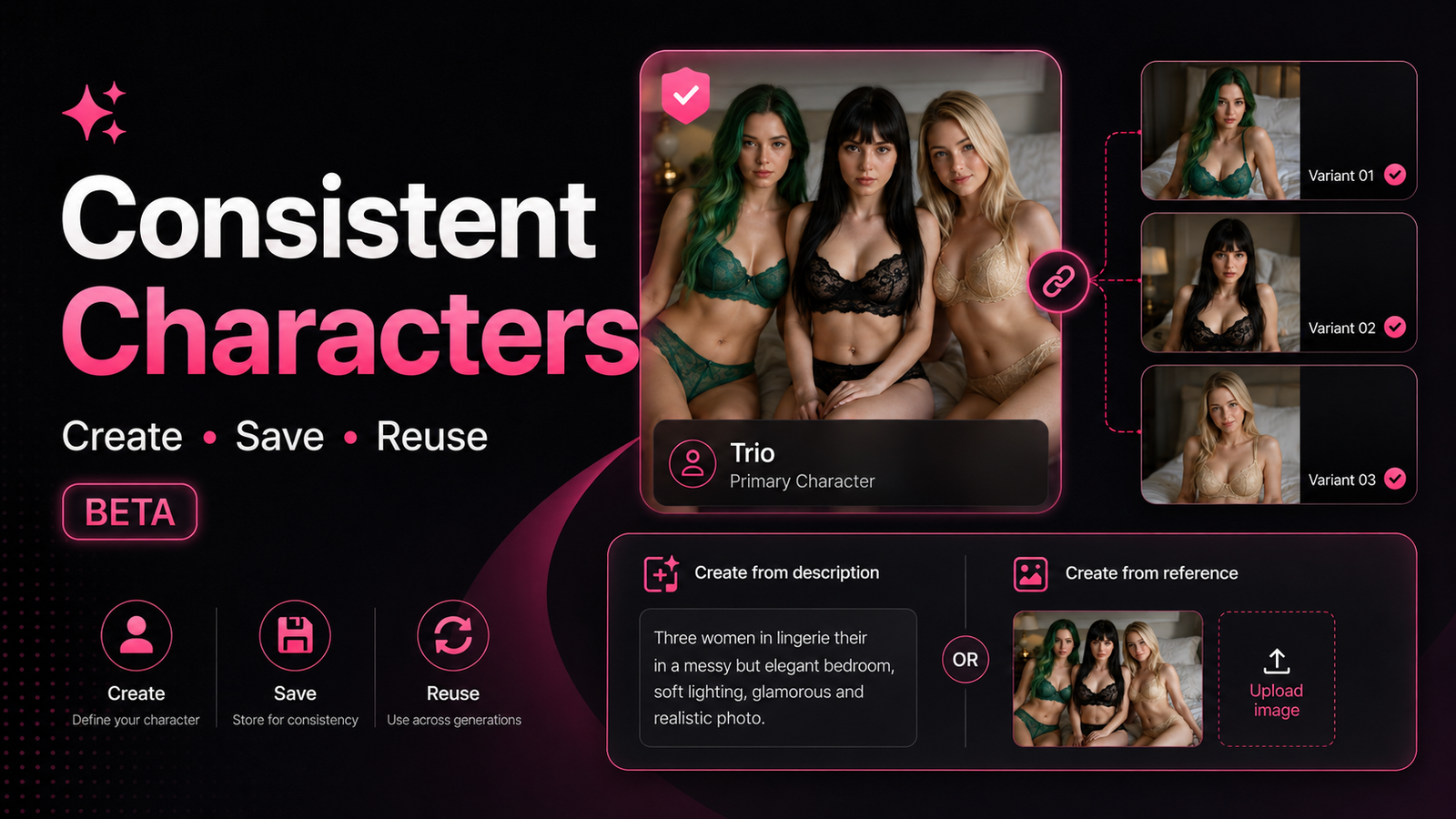
Consistent Characters helps you maintain a consistent and recognizable character appearance across multiple generations.
Consistent Characters can be used with both Studio and Lucid. The Character creation and selection process is the same for both Engines.
The main difference is generation capability:
| Engine | Best For |
|---|---|
| Studio | Standard Consistent Character generations using Prompts and Tags. Less powerful. |
| Lucid | More advanced Natural Language control, stronger instruction following, and more complex single- or multi-character scenes. |
You can create a Character from a written description or use one of your existing Creations as a Reference Image. Once saved, the Character can be selected when generating new content.
We will continue improving and expanding this feature over time.
How to Create a Consistent Character
Note: The process of creating a Consistent Character is the same on Lucid and Studio. Just make sure you select the model you want using the dropdown provided.
Step 1: Go to the Create Page
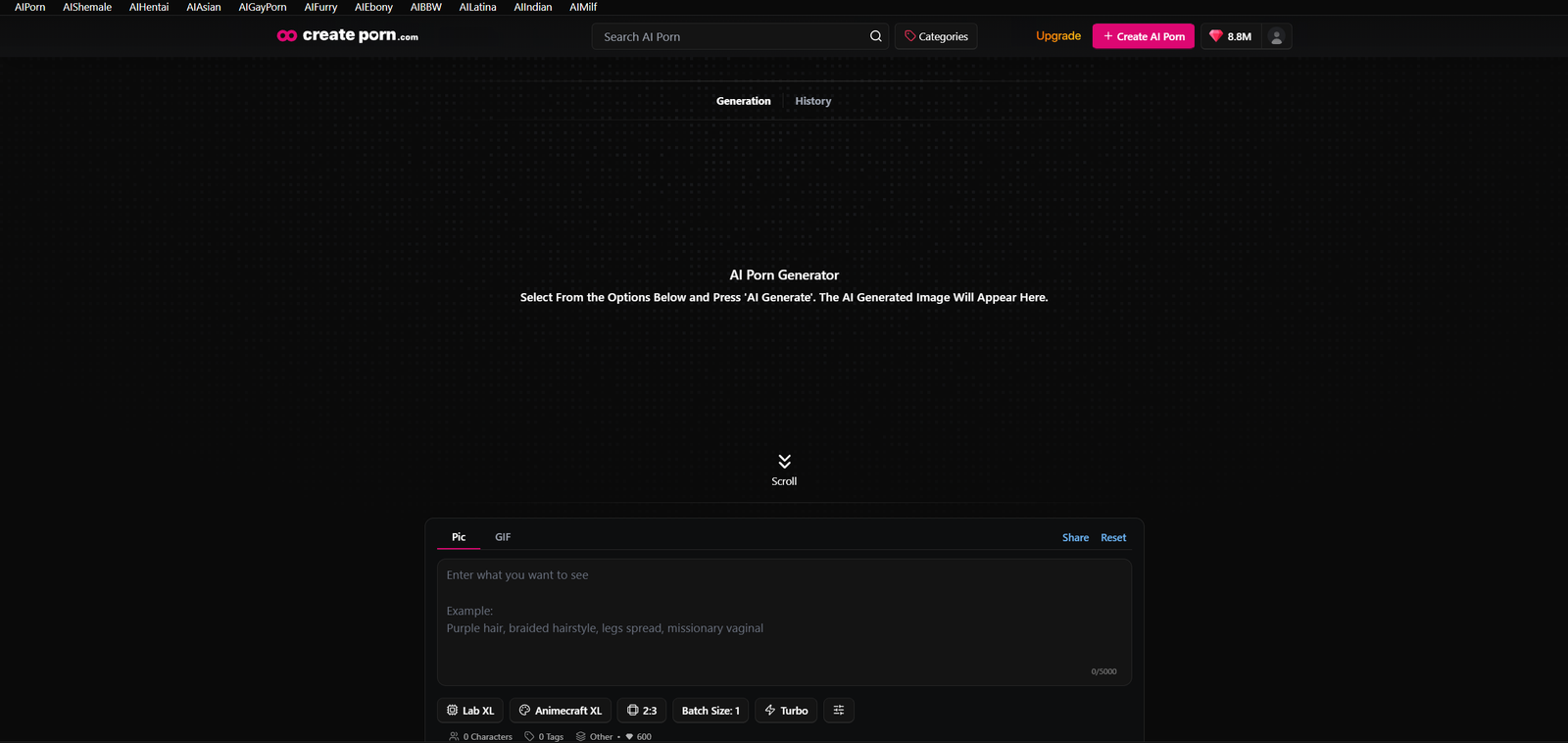
Open the Create page and select the Style you want to use.
Expand the Consistent Characters section under the generation settings.
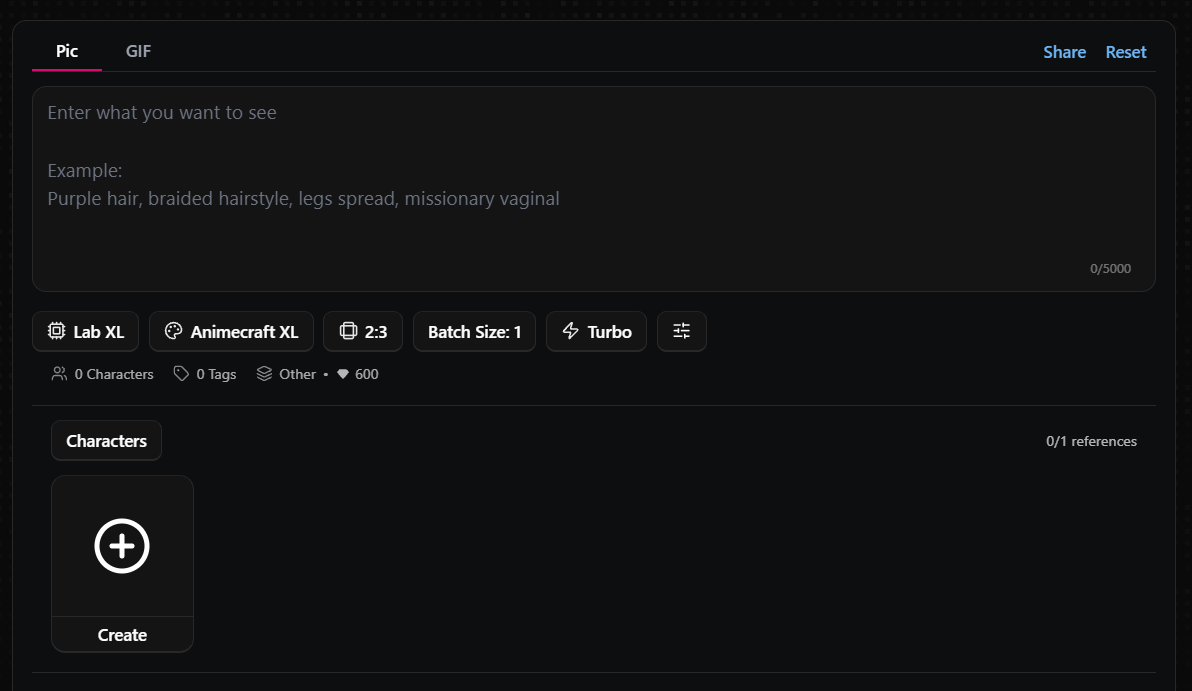
Step 2: Select Create
Select Create inside the Consistent Characters section.
This will open the Character creation screen.
Step 3: Choose How to Create the Character
Choose whether you want to create the Character from a Description or a Reference Image.
There are two options:
- Create from a Description
- Use a Reference Image
Option 1: Create from a Description
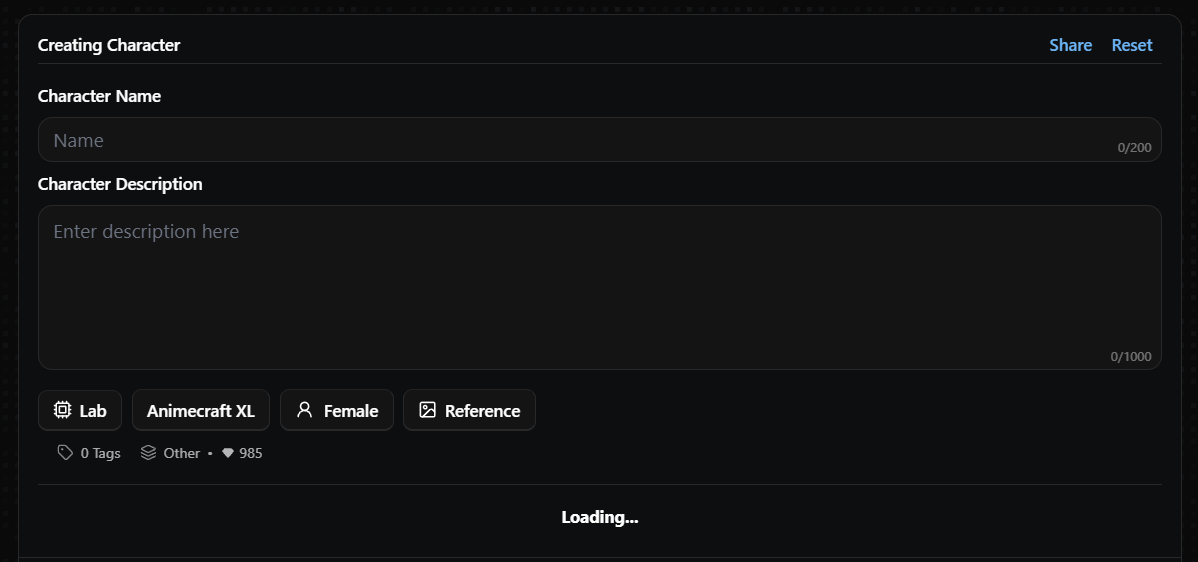
Enter a name for your Character.
In the Character Description field, describe the Character's visible physical features.
You can include details such as:
- Hair color
- Hairstyle
- Eye color
- Body type
- Breast size
- Other recognizable physical features
Keep the description focused on the Character's appearance. You can also select relevant Tags to improve the results.
Note: Outfit and costume recognition are not currently supported when creating the Character. Add clothing and costume instructions to your generation Prompt instead.
Once your Character details are ready, click Generate.
Option 2: Use a Reference Image
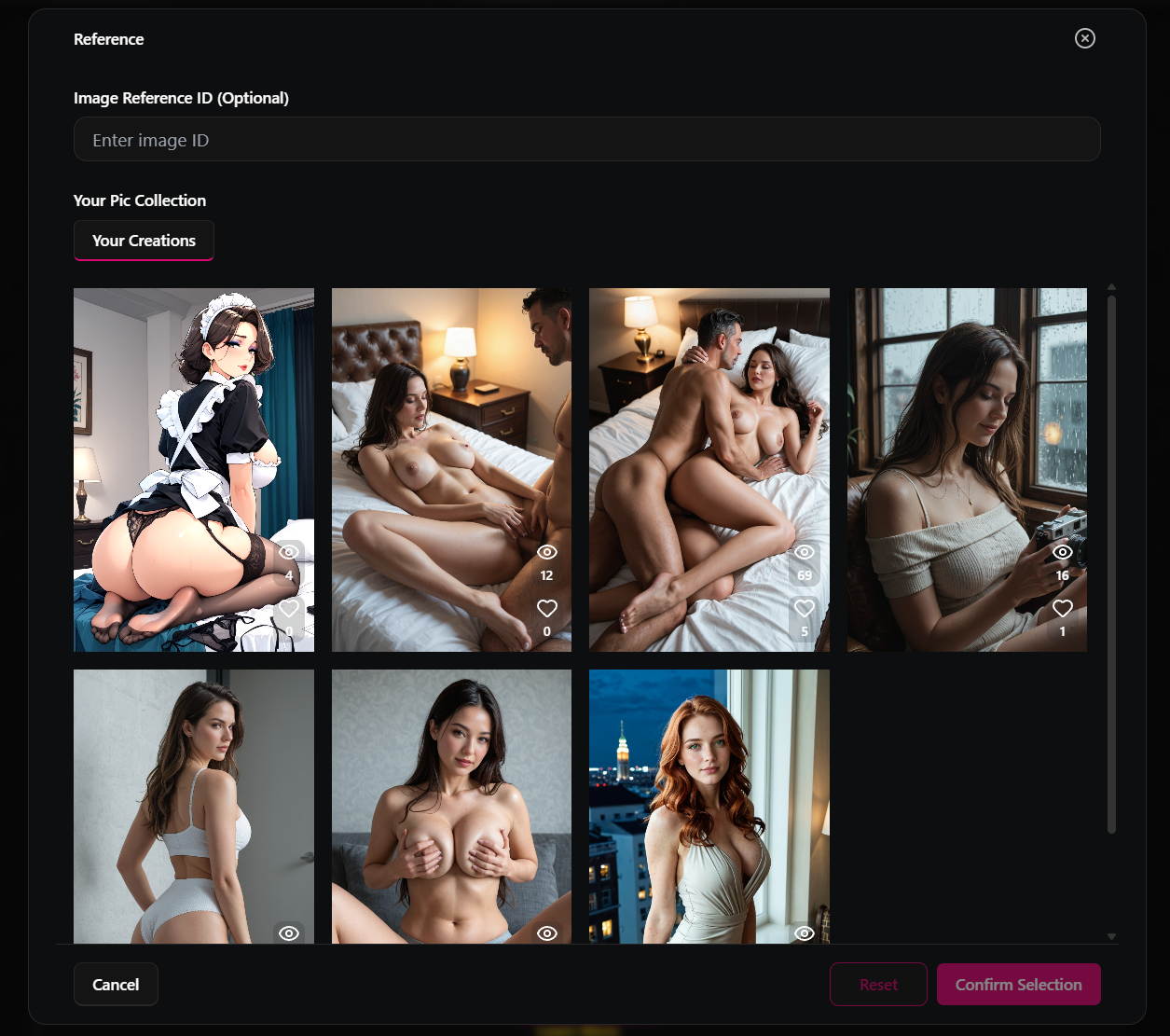
Click Reference and choose one of your existing Creations.
The selected image will be used as the visual reference for your Character.
Choose a clear image where the Character's face and other recognizable physical features are easy to see.
Once the Reference Image is selected, click Generate.
Step 4: Review the Character Options
After the Character is generated, three versions will appear.
Review each option and choose the version that best matches the Character you want to create.
Note: Character creation currently generates one Character option. The previous three-option selection is not currently available.
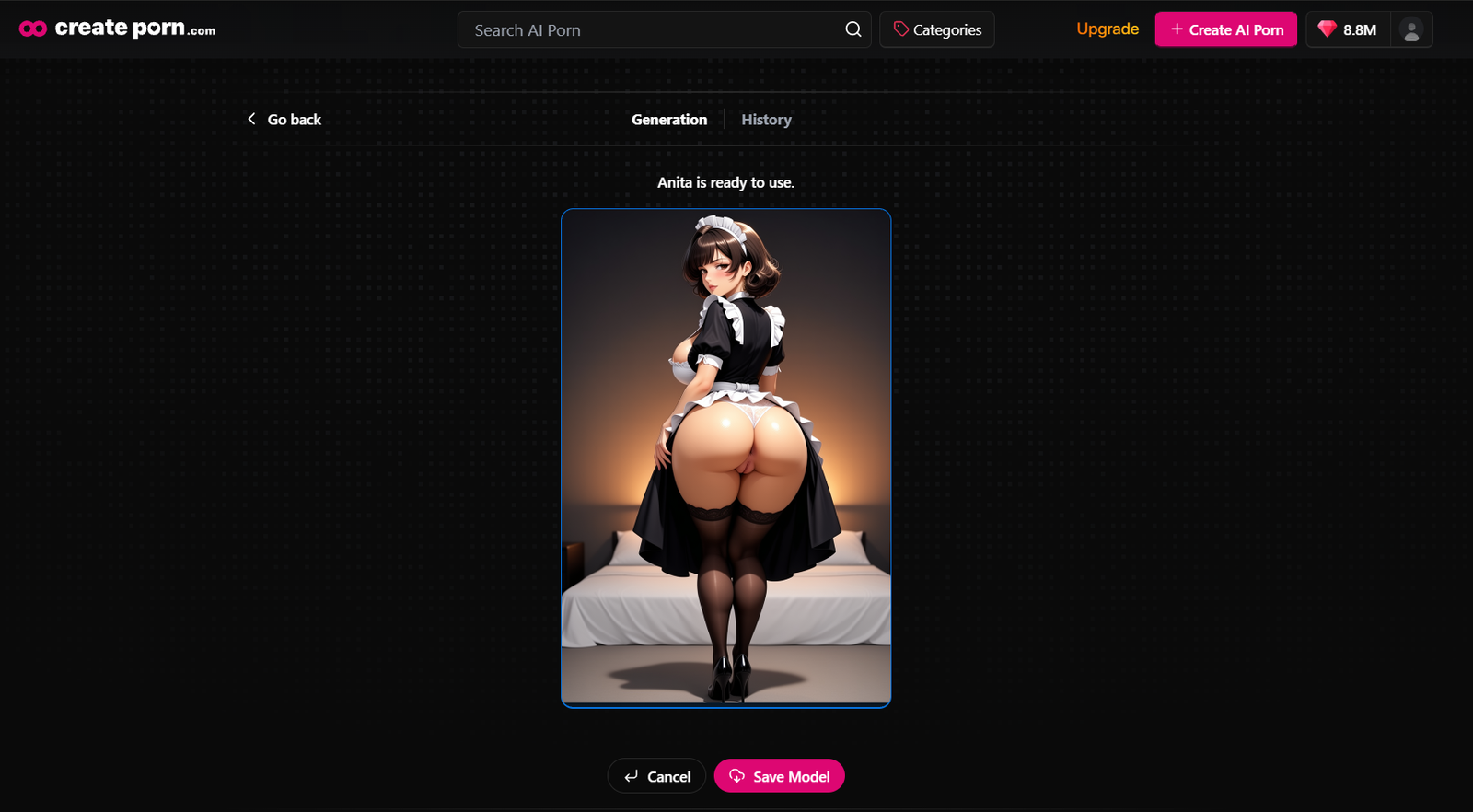
Step 5: Save the Character
Click Save Model to save you Character version.
The Character will be saved and added to the Consistent Characters section on the Create page.
You can then select the saved Character when creating supported content.
How to Generate Content with a Consistent Character
Step 1: Choose Your Style and Engine
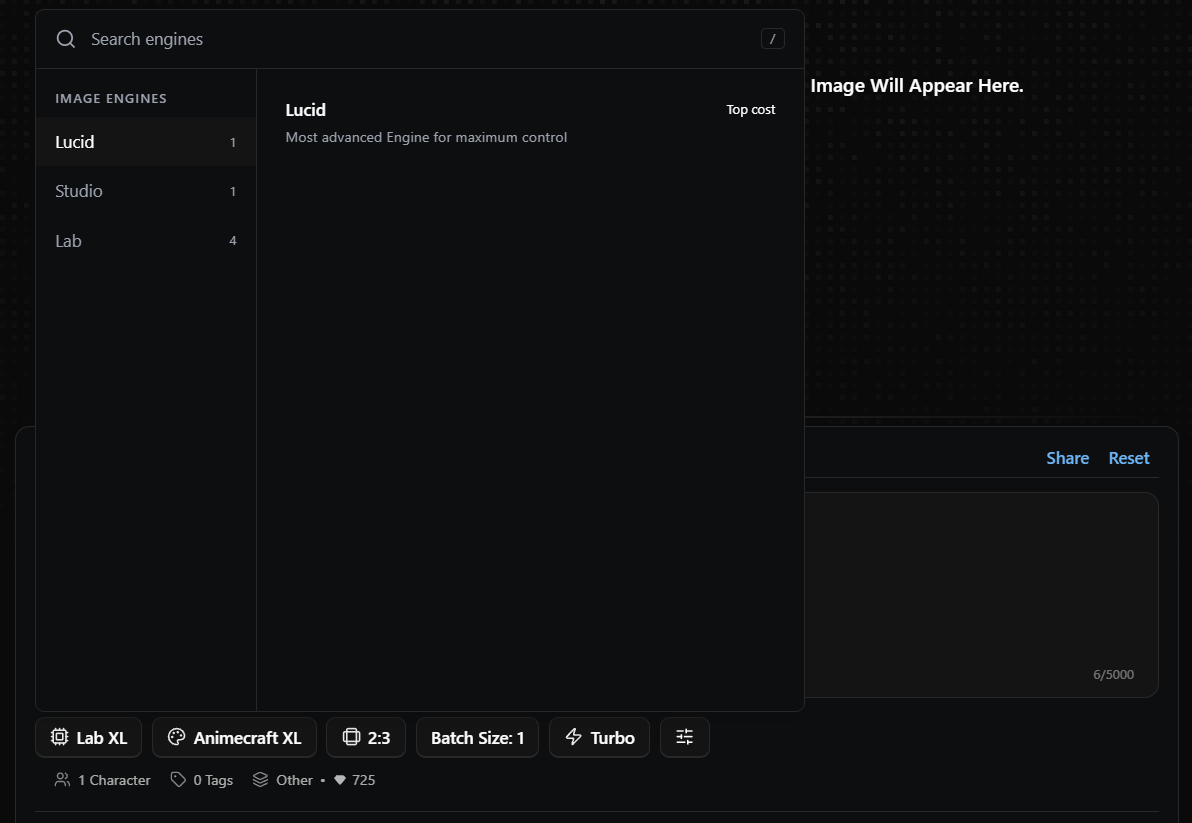
Open the Create page and select the Style you want to use.
Choose either Studio or Lucid, depending on the type of generation you want to create.
Studio works well for standard Character generations.
Lucid provides stronger Natural Language instruction following and is recommended when you want more detailed control over the Character, scene, composition, or interaction between multiple Characters.
Note: Characters made in one Style can be used with other Styles, but results may vary in quality, appearance, and consistency.
Step 2: Enter Your Prompt and Generate
Enter a Prompt or select Tags to describe the scene, pose, action, clothing, or other details you want to generate
You do not need to repeat all of the Character's saved physical features in the Prompt.
Click Generate to begin creating your content.
Using Consistent Characters with Studio
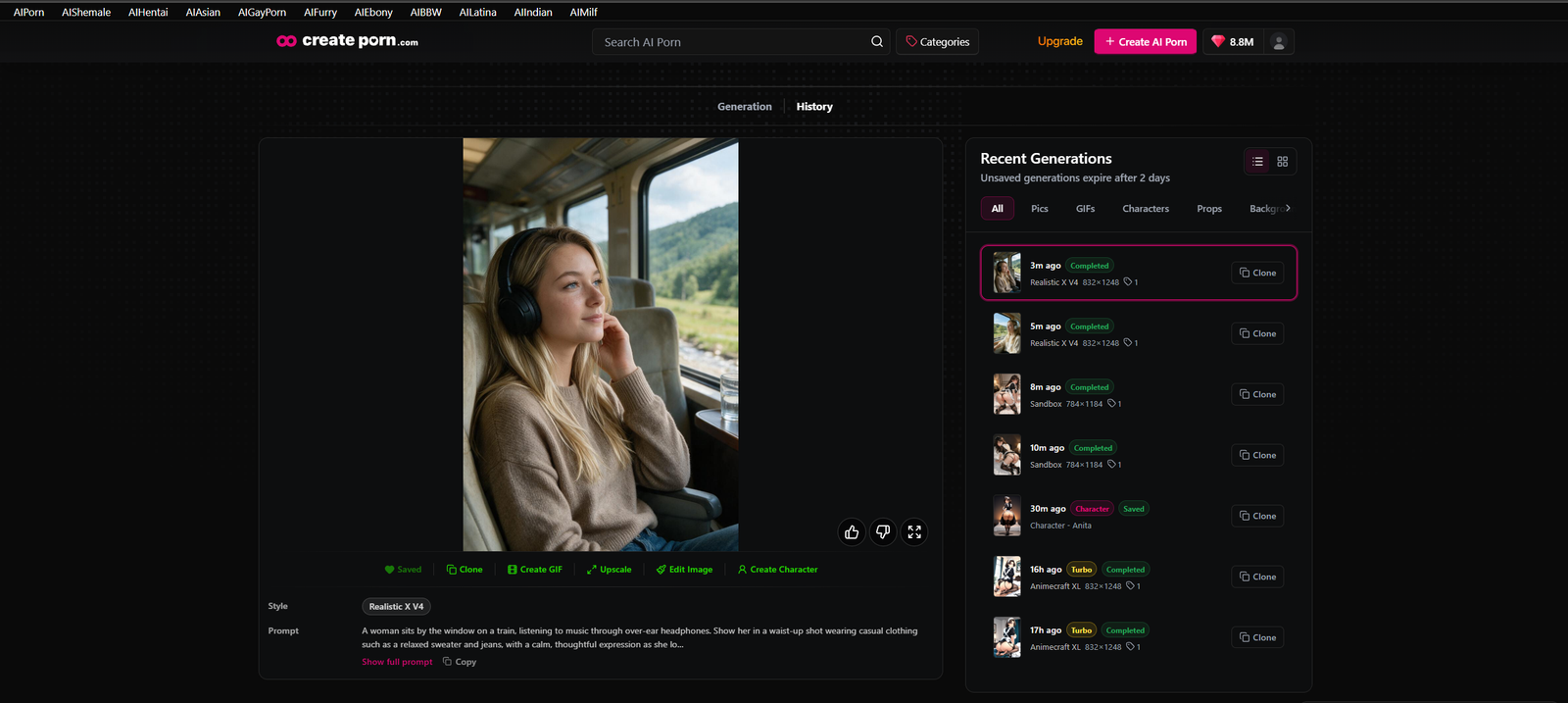
Example
A woman sits by the window on a train, listening to music through over-ear headphones. Show her in a waist-up shot wearing casual clothing such as a relaxed sweater and jeans, with a calm, thoughtful expression as she looks out at the passing scenery. Soft natural daylight filters through the train window, creating a cozy and reflective atmosphere inside the carriage.
Studio supports Consistent Characters using the same Character selection process.
After selecting your Character, use your Prompt and Tags to describe the scene, clothing, pose, action, and other generation details.
Keep your instructions clear and avoid unnecessarily repeating the Character's saved physical appearance.
Using Consistent Characters with Lucid
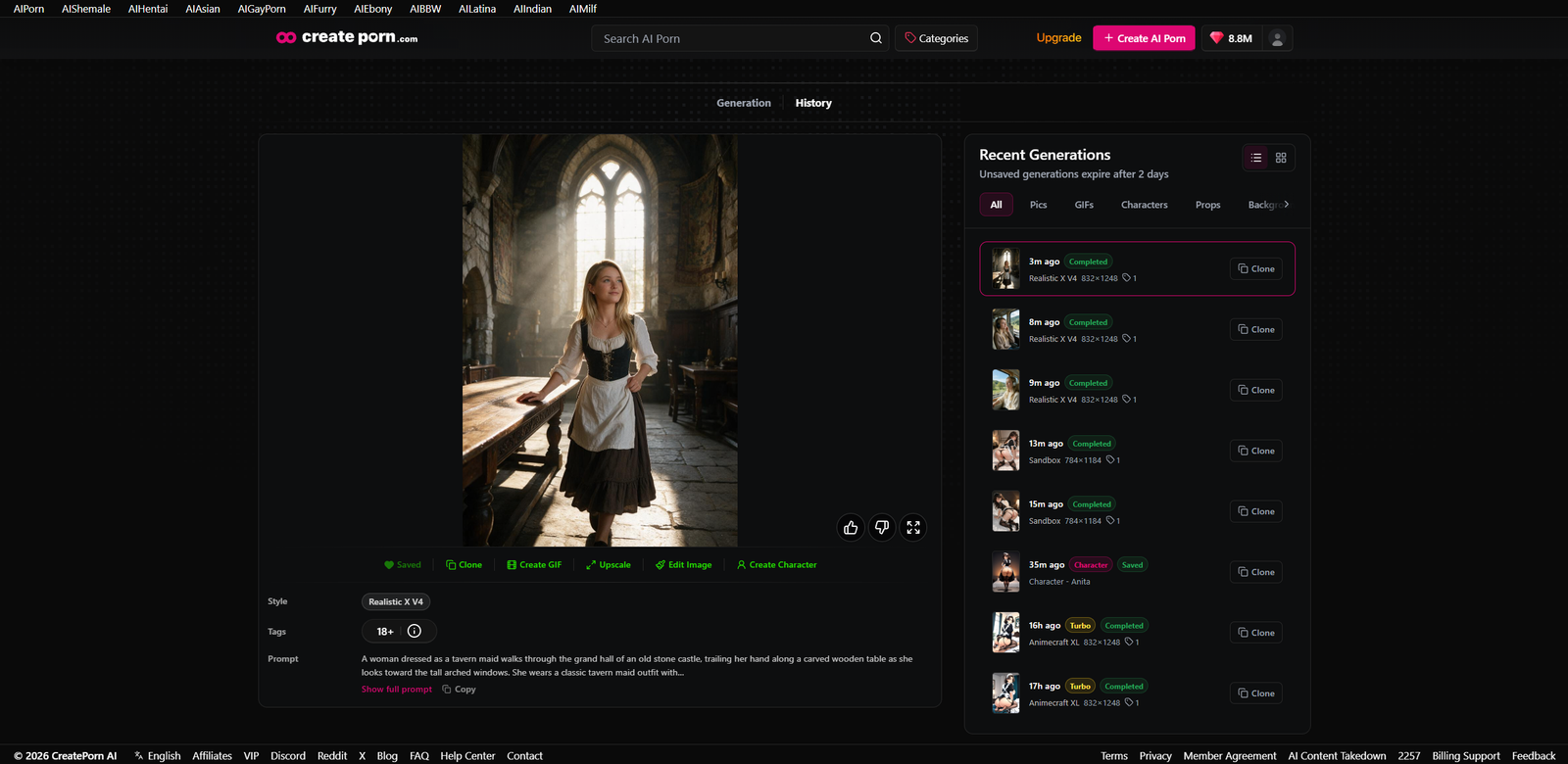
Example
A woman dressed as a tavern maid walks through the grand hall of an old stone castle, trailing her hand along a carved wooden table as she looks toward the tall arched windows. She wears a classic tavern maid outfit with a fitted corset bodice, white blouse, apron, layered skirt, and simple rustic accessories. Warm afternoon light pours through the windows, illuminating drifting dust, aged stone walls, heavy wooden furniture, and faded tapestries throughout the room.
Lucid uses the same saved Consistent Characters, but provides stronger Natural Language control.
You can give Lucid more detailed instructions about:
- Character position
- Pose and action
- Clothing
- Environment
- Camera composition
- Lighting
- Interactions between Characters
For more information, see Natural Language Prompting Guide for Lucid & Studio Engines and Lucid: Advanced Image Generation and Editing.
Using Multiple Consistent Characters
You can select multiple Consistent Characters using the same process.
When using multiple Characters, refer to them by the order in which they were selected and clearly explain where each Character should appear or what they should do.
Example:
Three characters sit together on a bed. Place the woman in Image 1 on the left, the woman in Image 2 in the center, and the woman in Image 3 on the right. They are looking at the camera and wearing lacy lingerie that matches their hair color. The characters exude an alluring, seductive vibe and gaze at the viewer with doe-eyed expressions.
Generated with Studio
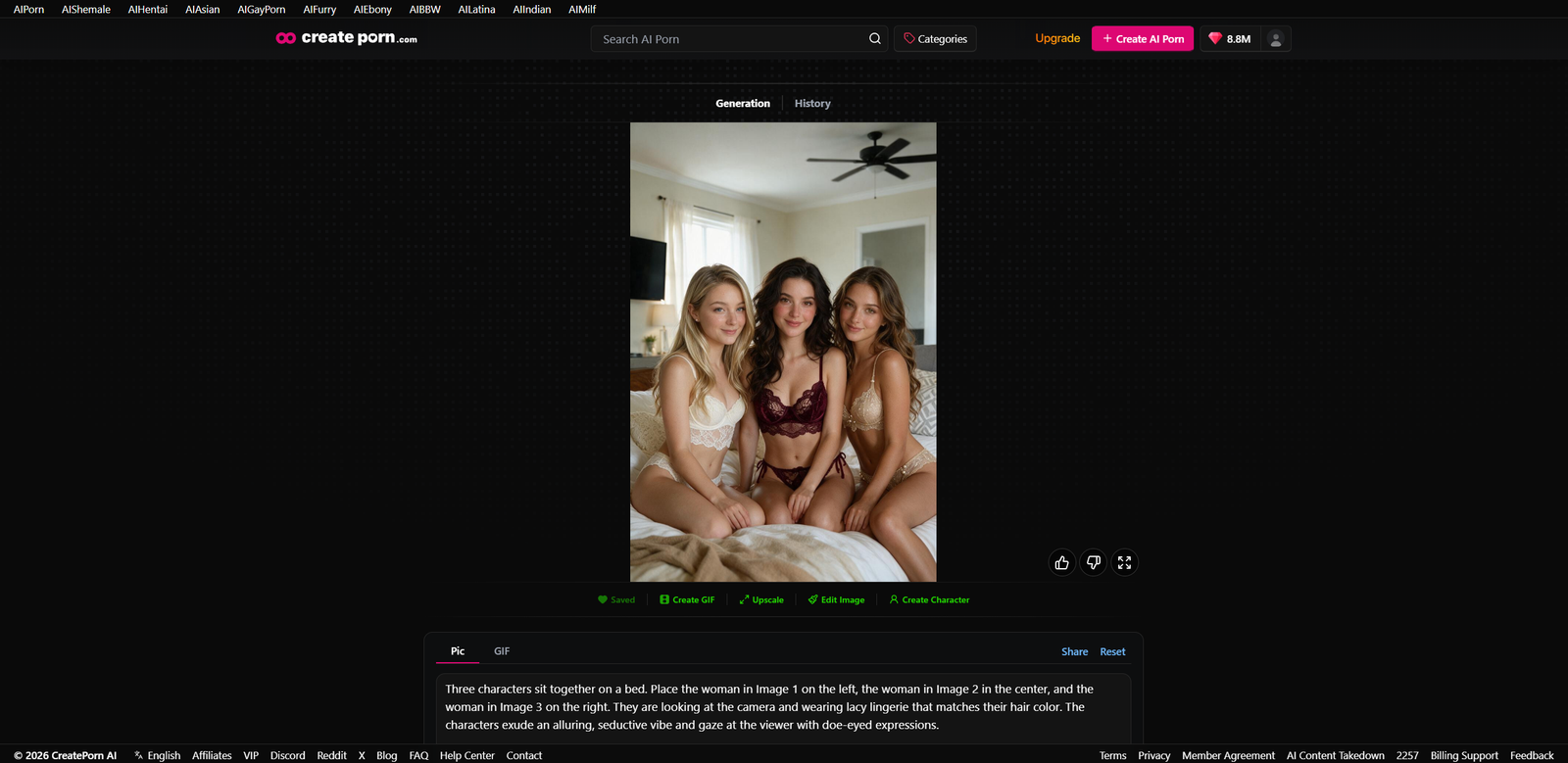
Generated with Lucid
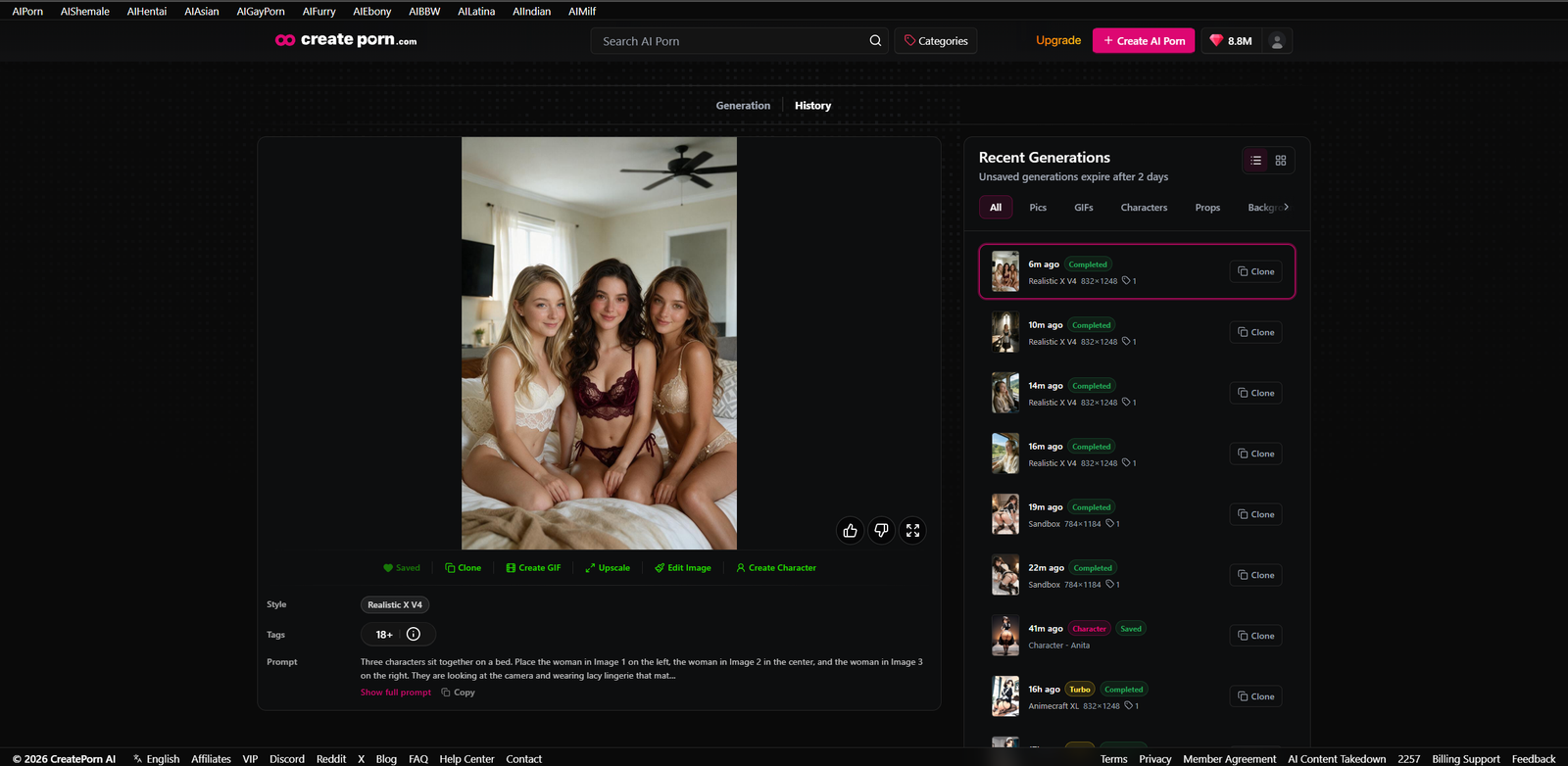
Lucid is recommended for more complex multi-character scenes because its Natural Language capabilities provide stronger control over Character placement, actions, and interactions.
Studio vs Lucid for Consistent Characters
| Studio | Lucid | |
|---|---|---|
| Use saved Consistent Characters | Yes | Yes |
| Same Character selection flow | Yes | Yes |
| Single Character generation | Yes | Yes |
| Multiple Characters | Yes | Yes |
| Natural Language prompts | Yes | Yes |
| Detailed Character positioning | Supported | Stronger |
| Complex Character interactions | Supported | Stronger |
| Detailed scene instructions | Supported | Stronger |
| Recommended for complex multi-character compositions | Can be used | Recommended |
Tips
Keep Character Descriptions Focused on Appearance
- When creating a Character from a description, use clear physical details such as hair, eyes, body type, and other recognizable features.
Add Scene Details to the Generation Prompt
- Avoid adding actions, locations, poses, or scene details to the Character Description. Add these instructions when generating instead.
Choose a Clear Reference Image
- Choose a Reference Image where the Character's face and important physical features are easy to see.
Do Not Repeat Unnecessary Appearance Details
- Once a Consistent Character is selected, focus your Prompt on what you want the Character to do, wear, and interact with.
Clearly Assign Multiple Characters
- When using multiple Characters, identify each one by selection order and specify their position or action.
Need Help?
If your Character does not appear in the Consistent Characters section, confirm that you are using the correct Style and that the Character was saved successfully.
If the Character is not being applied to your generation, check that it is selected before clicking Generate.
For multi-character generations, confirm that every Character is selected and that your Prompt clearly identifies Image 1, Image 2, Image 3, and so on.
If results are inconsistent, try:
- Using a clearer Character Reference Image.
- Simplifying the generation Prompt.
- Reducing the number of simultaneous actions.
- Using Lucid for more complex Character placement or interactions.
If the issue continues, contact Support with the Character name, selected Style and Engine, and affected Creation link.