


How to use Batch Generation
On this page
Batch Generation allows you to create multiple Images simultaneously using a single generation setup.
You can generate up to four Images in a single batch. This saves time and gives you several results to compare without repeating the generation process.
Note: Batch Generation is only available when Turbo Generation is enabled. Some Turbo Generation features may require an active subscription or available Gems. For information about purchasing or redeeming subscriptions and Gems through G2A, see the G2A purchase and redemption guide.
How to Generate a Batch of Images
Open the Create Page
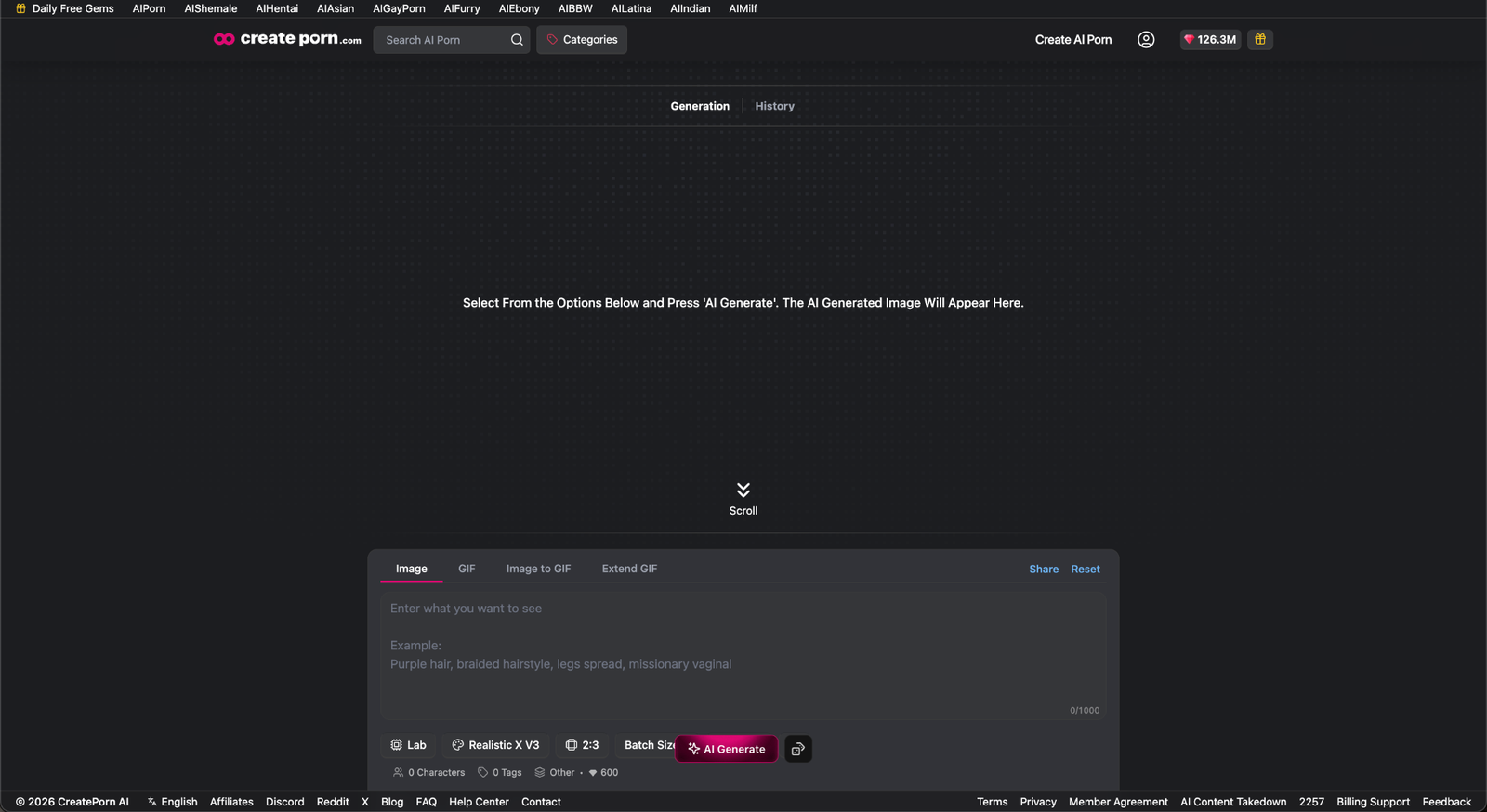
Open the Create page and select the Style you want to use.
The Create page contains Styles, Prompt, Tags, Batch Size, and other settings needed to generate your Images.
Enable Turbo Generation before selecting your Batch Size.
The Batch Size options will not be available when Turbo Generation is turned off.
Select a Batch Size
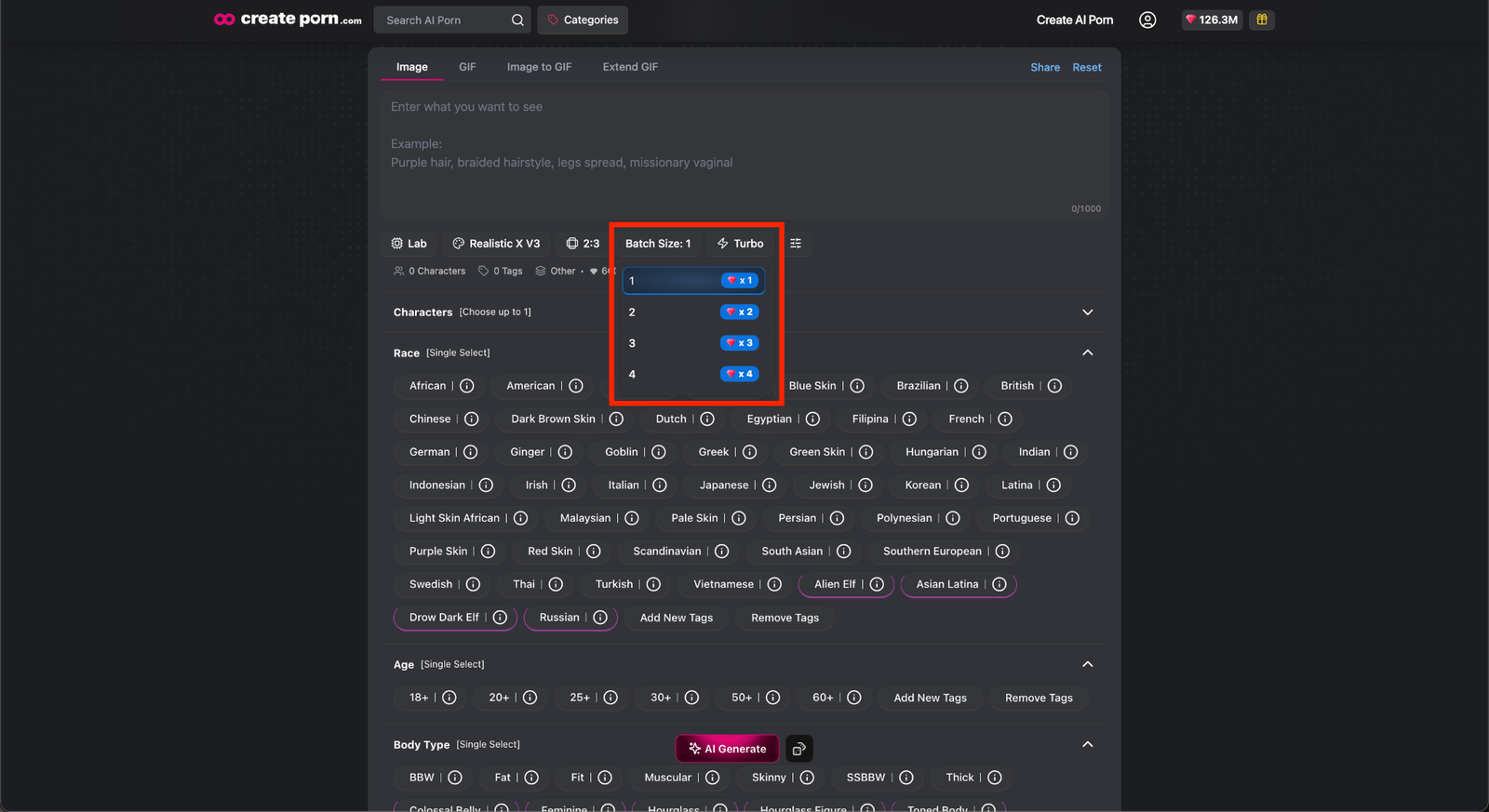
Open the Batch Size setting and choose how many Images you want to generate.
You can generate up to 4 images per batch.
Enter Your Prompt and Tags
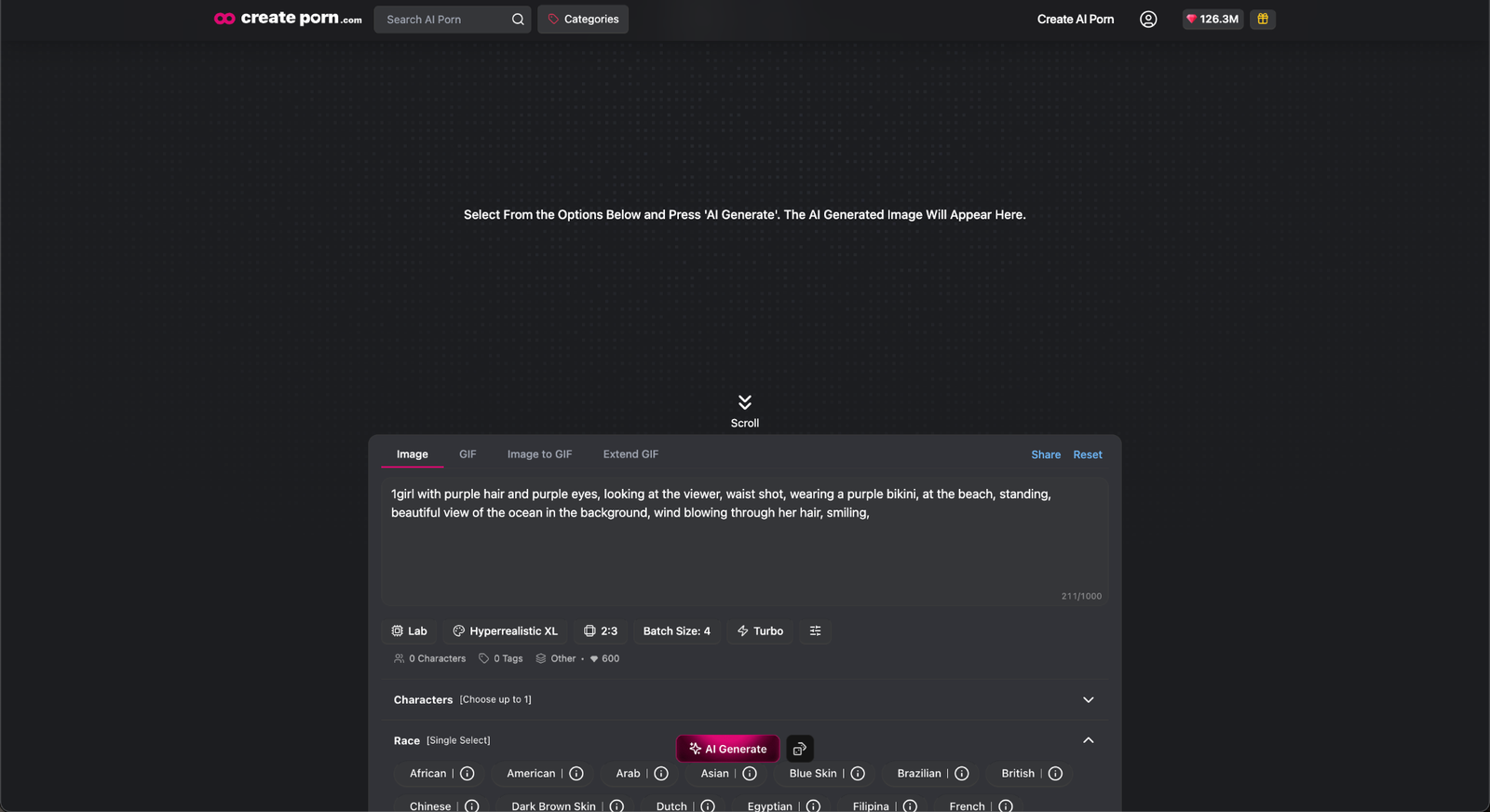
Enter a Prompt describing the content you want to create.
Example:
1girl with purple hair and purple eyes, looking at the viewer, waist shot, wearing a purple bikini, at the beach, standing, beautiful view of the ocean in the background, wind blowing through her hair, smiling,
You can also select Tags to add details or select a Consistent Character.
Configure Additional Generation Settings
Review the remaining settings before generating. Depending on the selected Style, these settings may include:
- Aspect Ratio
- Advanced settings
- Prompt Adherence
- Other available generation options
The selected Prompt, Tags, and settings will be used to create every Image in the batch.
Generate & View Your Images
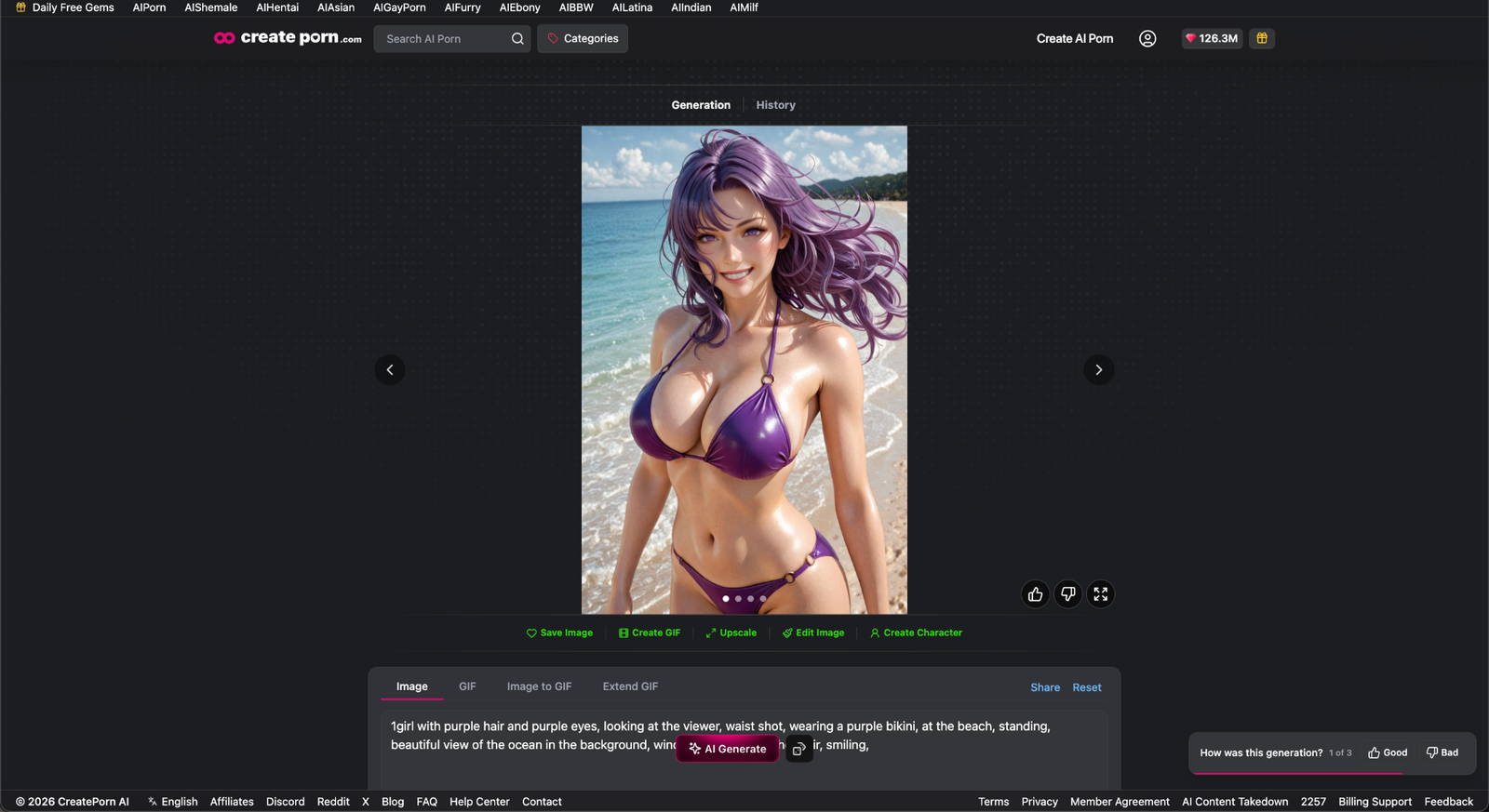
After reviewing your Batch Size and generation settings, click Generate.
The platform will begin creating the selected number of Images. Generation time may vary depending on your inputs.
When the generation is complete, the first Image in the batch will appear in the result area.
Use the left and right arrow buttons to move between the generated Images and review each result.
Tips
Review your Prompt, Tags, and settings before generating because the same setup will be used across the entire batch.
Use a smaller Batch Size when testing a new Prompt or a combination of Tags.
Use a larger Batch Size when you want several variations of the same idea to compare.
Need Help?
If the Batch Size setting is unavailable, confirm that Turbo Generation is enabled.
If the selected number of Images does not appear after the generation finishes, refresh the page and check your generation history.
If the issue continues, contact Support and include the selected Style, Batch Size, Prompt, and Creation link.